

Table of Contents
- Best Laptops for Remote Work 2026: Our Top Picks
- The 2026 Remote Work Laptop Requirements You Should Know
- How to Choose a Laptop for Remote Work: Key Specs
- Best Laptop for Video Conferencing: Camera and Mic Quality
- Build the Ultimate Remote Work Setup
- Which Remote Work Laptop Should You Pick?
- Conclusion
- Frequently Asked Questions
Last Updated: September 8, 2026
Best Laptops for Remote Work 2026: Our Top Picks
Reviewers at RTINGS have tested over 155 laptop models to determine the best options for working from home in 2026, and the results confirm a clear shift toward AI-integrated hardware. Finding the best laptops for remote work 2026 means looking past flashy specs and focusing on what actually keeps you productive: battery endurance, a quality webcam, and enough processing power for your daily workflow. This guide from TechyDealy breaks down the top performers and the exact specifications that matter, so you can buy with confidence rather than guesswork.
The current champion for most people is the M5 MacBook Air (15-inch, 2026), which earned a 9.0/10 score from CNET's laptop testing for its blend of performance, portability, and battery life. For Windows users, the HP OmniBook Ultra 14 leads the pack with an 8.3/10 rating, while business-focused buyers should examine the Lenovo ThinkPad X1 Carbon Gen 14 Aura Edition, named the top business laptop by PCMag. Below, we'll show you exactly how these models compare and which one fits your specific work style.
The 2026 Remote Work Laptop Requirements You Should Know
Remote work laptop requirements 2026 have settled into a clear baseline. Technical guidance from Doctor Memory recommends a solid state drive, at least 8GB of random access memory, a modern processor, and a Full HD display as the minimum configuration for most remote professionals.
That baseline covers email, document editing, and light multitasking. But if your day includes video conferencing, data analysis, or creative software, you will want more headroom. In practice, prioritize a current-generation processor and 16GB of RAM if your budget allows.
How to Choose a Laptop for Remote Work: Key Specs
Choosing a laptop for remote work comes down to matching hardware specifications to your actual workload, not just picking the most expensive option.
Match the Silicon to Your Software Stack
The processor's architecture determines which workloads it handles gracefully. Here is how the major chip families break down for specific remote workflows:
- Cloud-Based SaaS and Heavy Browser Work (Slack, Notion, Google Workspace, Zoom): Your bottleneck is almost never raw CPU speed, it is memory bandwidth and single-core performance. Most practitioners find that a modern mid-range chip like the Intel Core Ultra 5 or Apple's M3-class silicon is more than sufficient. The real upgrade here is 16GB of RAM, because each open tab and Electron-based app (Slack, Teams, Discord) reserves a significant chunk of memory. A common pattern is that 8GB machines start swapping to the SSD after 15-20 tabs, causing audible fan spin and UI stutter during video calls.
- Local Creative Rendering (Adobe Premiere, After Effects, DaVinci Resolve, 3D Modeling): This workload is massively parallel and GPU-accelerated. A laptop with a discrete GPU (NVIDIA RTX 40-series or better) and a high-core-count CPU (Intel Core Ultra 7/9 or Apple M4 Pro/Max) is non-negotiable. Integrated graphics in thin-and-light ultrabooks will render a 4K timeline at a crawl. Look for at least 32GB of unified or dedicated memory for 4K timelines, and prioritize active cooling (fans) over fanless designs to avoid thermal throttling on long exports.
- Coding and Development (IDEs, Containers, Local VMs): Developers live in a world of compilers, Docker containers, and local databases. The key spec here is not just RAM (16GB is the practical floor, 32GB is comfortable), but also SSD speed and sustained multi-core performance. A fast PCIe Gen 4 or Gen 5 SSD dramatically cuts build times and container startup. For developers, a high-resolution display (2K or higher) matters more than for other roles because you are constantly juggling an editor, a terminal, and documentation side-by-side.
The Battery Life Reality Check
Battery life is the second critical factor, especially if you move between rooms, coffee shops, or client sites. Published battery numbers are measured under controlled video-loop conditions, not real remote work. Continuous video calls, browser use, and document editing typically cut manufacturer claims by 30-40%. For frequent travelers, prioritize a lightweight build (under 3.5 pounds) and at least 10 hours of real-world mixed use.
The Spec Table That Actually Helps
| Specification | Minimum Requirement | Recommended For Power Users | Why It Matters |
|---|---|---|---|
| Processor | Modern mid-range chip (Intel Core Ultra 5, Apple M3) | AI-ready Copilot+ or Apple M4 Pro/Max | Handles multitasking and video calls; high-core-count for rendering |
| RAM | 8GB (16GB strongly advised) | 16GB (32GB for creative/dev) | Prevents slowdowns with many open apps; 8GB is the bare floor for SaaS work |
| Storage | 256GB SSD | 512GB+ PCIe Gen 4 SSD | Fast boot and file access; faster SSDs cut build and load times |
| Display | Full HD (1080p) | 2K+ with high brightness (400+ nits) | Reduces eye strain; higher resolution aids code and design work |
| Battery | 8 hours (claimed) | 14+ hours (claimed) | Supports all-day work; discount claimed numbers by 30-40% for real use |
| GPU | Integrated | Discrete (RTX 40-series) for creative work | Non-negotiable for video rendering and 3D work |
The Security Layer Most Guides Ignore
Remote work introduces a security dimension that office workers never faced. On a home network or coffee shop Wi-Fi, your laptop is the only barrier between your employer's data and the outside world. Hardware-level security features are no longer optional:
- TPM 2.0 (Trusted Platform Module): This is a dedicated cryptoprocessor that secures your hard drive encryption keys and verifies the system hasn't been tampered with. Windows 11 requires it, and it is essential for BitLocker full-disk encryption. If you handle client data, this is non-negotiable.
- Biometric Authentication: A fingerprint reader or Windows Hello infrared camera is not just a convenience, it prevents shoulder-surfing password theft in public spaces and is far more secure than a four-digit PIN.
- Privacy Shutters: A physical webcam shutter (not just a software kill switch) is the only way to guarantee the camera is off when you are not on a call. Several enterprise laptops (ThinkPad, Latitude, EliteBook lines) include this as a standard feature.
- Kensington Lock Slot: For those who work in co-working spaces or travel with their laptop, a physical lock slot deters theft, the cheapest insurance policy you can buy.
When comparing models, check the spec sheet for these items explicitly. A laptop that skips the TPM or uses a software-only camera disable is a liability for any professional handling sensitive information.
Best Laptop for Video Conferencing: Camera and Mic Quality
The best laptop for video conferencing makes you look and sound professional without requiring external gear. A high-definition webcam with good low-light performance and a microphone array with noise cancellation are non-negotiable for daily client calls.
The Lenovo ThinkPad T14S stands out here, ranking among the top-used laptops for remote teams according to QuipTeams hardware analysis. Its keyboard is widely regarded as best-in-class, and the thermal management keeps the fans quiet during long calls. If you frequently present or record, consider pairing your laptop with a 2-Pack Wireless Lavalier Clip-On Microphones from TechyDealy for $21.97 to elevate your audio quality far beyond built-in mics.
Build the Ultimate Remote Work Setup
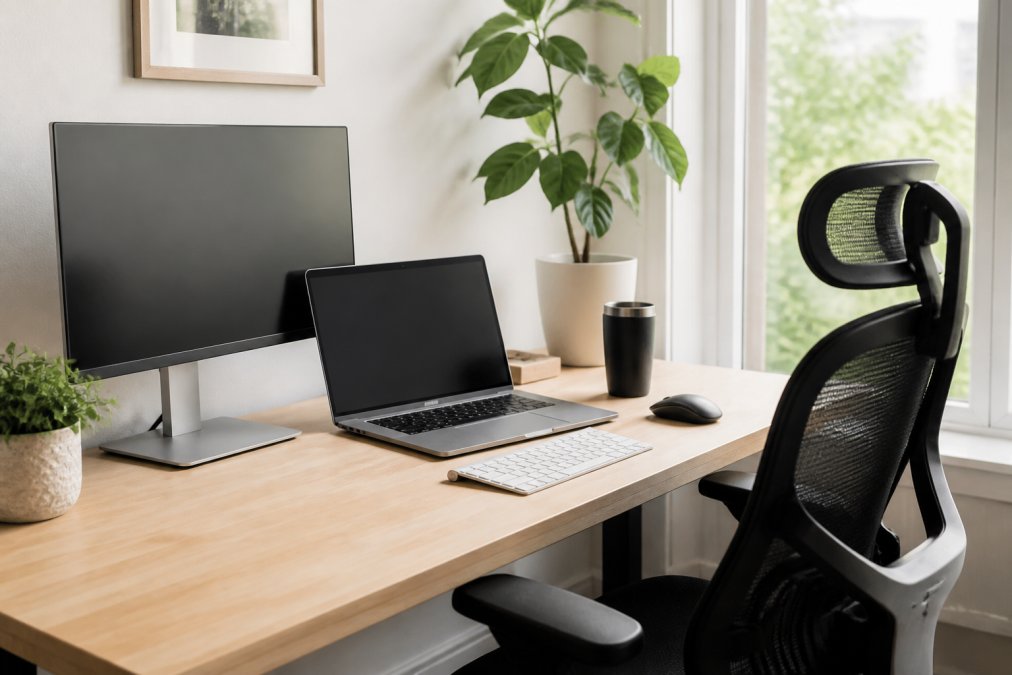
Your laptop is only half the equation. A productive remote workstation integrates ergonomic accessories that prevent the neck and back strain from hunching over a screen for eight hours.
The Ergonomic Hierarchy: Screen, Keyboard, Then Mouse
Ergonomic best practices follow a clear priority order. First, your screen must be at eye level so your neck stays neutral. Second, your keyboard should allow your elbows to rest at a 90-degree angle. Third, your mouse should sit at the same height as your keyboard.
A laptop stand is the single highest-impact accessory you can buy. The Modulemaster Laptop Stand from TechyDealy, priced at $45.35, elevates your screen to eye level, which reduces strain and improves posture during long working sessions. But a stand alone creates a new problem: the built-in keyboard is now at an awkward angle. This is why the second purchase should always be an external keyboard.

The Portable Foldable Folding Keyboard at $30.21 gives you a full-size typing experience even when space is tight. For mouse users, the 2.4G Wireless Mouse with RGB Backlit for $12.94 provides precise cursor control without cable clutter.


The Docking Station Question
If you use an external monitor for more than two hours a day, a docking station is a cable-management necessity. The alternative, plugging and unplugging a USB-C hub, an HDMI cable, and a power adapter every time you move, risks port damage and lost time.
When choosing a dock, verify that it supports your laptop's native power delivery wattage. A 65W dock will not charge a 100W laptop at full speed. For most remote workers, a USB-C dock with 85-100W PD and HDMI 2.0 or DisplayPort is the sweet spot.
Power Management for the Multi-Device Worker
Remote workers rarely run just one device. A laptop, a phone, and wireless earbuds all need charging. The Power Bar with USB at $20.09 keeps all your devices charged from one compact hub. Look for a power strip with at least 3 USB ports and a flat plug that sits flush against the wall, this matters more than you think when your desk is against a wall with limited clearance.
The Video Call Lighting Fix
A quality webcam is only as good as the light hitting your face. The most common remote work video problem is harsh overhead lighting that casts shadows. Position your laptop so a window is in front of you, not behind you. If that is not possible, a small LED panel or desk lamp at eye level, slightly off-axis, dramatically improves image quality.
The Sustainability Angle: Repairability Matters
A remote work setup is a long-term investment, and the most sustainable laptop is the one you do not have to replace. Before buying any accessory or laptop, check its repairability. The Framework laptop line is the gold standard here, with modular components that users can swap themselves.
Which Remote Work Laptop Should You Pick?
If you want the simplest recommendation: the M5 MacBook Air (15-inch) is the best laptop for remote work overall because it delivers exceptional battery life, a silent fanless design, and enough power for everything from spreadsheets to light video editing. Windows users should gravitate toward the HP OmniBook Ultra 14.
Budget-conscious shoppers should note a key tension in the market. While lower-priced options exist, experts at Wired argue that for full-time remote workers, premium models like the MacBook Air provide better long-term value and reliability. Enterprise deployments tell a similar story: remote teams overwhelmingly rely on specific models like the Lenovo ThinkPad T14S and Dell Latitude 7440 for their durability and manageability.
| Laptop | Best For | Key Strength | Consider If |
|---|---|---|---|
| M5 MacBook Air 15-inch | Overall remote work | Battery life and silence | You prefer macOS |
| HP OmniBook Ultra 14 | Windows users | AI-ready performance | You need Copilot+ features |
| Lenovo ThinkPad X1 Carbon Gen 14 | Business professionals | Keyboard and portability | You want enterprise durability |
| Lenovo ThinkPad T14S | Remote teams | Proven reliability | Your company standardizes on Lenovo |
Conclusion
Choosing the right laptop for remote work in 2026 comes down to matching the machine to your daily habits, not chasing the highest benchmark scores. Prioritize battery life, a quality webcam, and enough RAM to handle your multitasking load.
TechyDealy carries the accessories that turn any laptop into a complete home office command center, from the Modulemaster Laptop Stand to wireless peripherals and power solutions. Every order includes complimentary ground shipping and a hassle-free return policy, so you can upgrade your setup with confidence. Get started with TechyDealy and build a remote work environment that keeps you comfortable and productive all day.
Frequently Asked Questions
What is the best laptop for working remotely in 2026?
The M5 MacBook Air (15-inch) is a top choice for most remote workers, earning a 9.0/10 from CNET for its performance and portability. For a Windows option, the HP OmniBook Ultra 14 is highly rated at 8.3/10. If you need a business-focused machine, the Lenovo ThinkPad X1 Carbon Gen 14 is a leading pick. Your final choice should align with your specific needs for video conferencing, multitasking, and software compatibility.
What are the remote work laptop requirements for 2026?
For professional remote work in 2026, a baseline configuration includes an SSD, at least 8GB of RAM, a modern processor, and a Full HD display. This setup supports video conferencing, cloud-based tools, and multiple browser tabs. If you do heavy multitasking or creative work, consider 16GB of RAM and a higher-performance processor. Reviewers at RTINGS have tested over 155 models to help you find one that matches these specifications.
Which laptop brand is most reliable for professional remote use?
Lenovo's ThinkPad series is a standout for reliability in business settings. The ThinkPad X1 Carbon Gen 14 and ThinkPad T14S are top recommendations from PCMag and are widely used by remote teams. Apple's MacBook Air and Pro models are also praised for their dependable performance and longevity. The most reliable brand often depends on your preferred operating system and the specific model you choose.
How much RAM do I need for a remote work laptop in 2026?
8GB of RAM is the minimum requirement for standard professional remote work in 2026. This handles video calls, document editing, and several browser tabs without issue. If you regularly use memory-heavy applications like design software or data analysis tools, or you keep dozens of tabs open, 16GB is a safer investment to ensure smooth multitasking and system responsiveness for years to come.