

Table of Contents
- Why Your Ergonomic Desk Setup for Remote Work Matters
- The 90-90-90 Rule: Desk Height, Chair, and Neutral Posture
- Monitor Height for Ergonomics: Eye Level and Screen Glare
- Choosing the Best Ergonomic Office Chair for Back Pain
- Lighting, Cable Management, and an Uninterruptible Power Supply
- Small-Space and Budget-Friendly Ergonomic Desk Setup Hacks
- Micro-Break Routines and Neurodivergent-Friendly Adjustments
- Frequently Asked Questions
Last Updated: September 17, 2026
Why Your Ergonomic Desk Setup for Remote Work Matters
Remote workers who dial in their workspace save an average of 72 minutes every day, according to Rove Travel's 2026 home office analysis. That number has nothing to do with willpower. It comes from removing the small physical frictions, the neck craning, the wrist twisting, the shifting in a chair that never quite fits, that quietly drain focus all day.
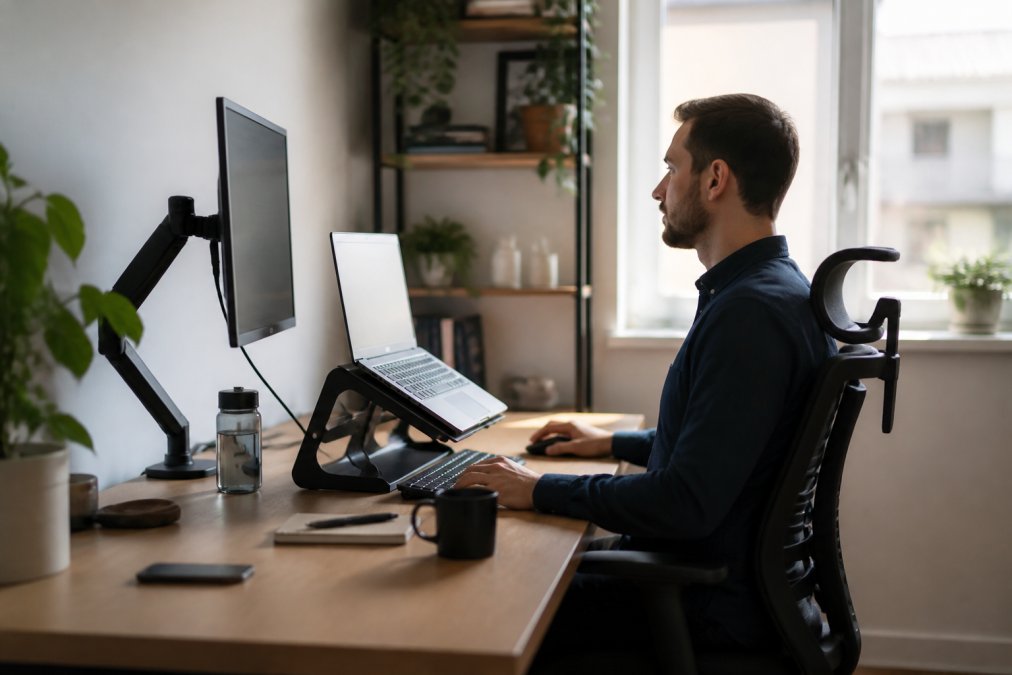
The 90-90-90 Rule: Desk Height, Chair, and Neutral Posture
The 90-90-90 rule is the fastest way to reach neutral posture: elbows, hips, and knees each bent to roughly 90 degrees, with feet flat and the spine supported. It's a starting point, not gospel.
Setting Desk Height and Elbow Height
Set your desk so your elbows rest at 90 degrees with forearms parallel to the floor. If your desk is fixed and too high, raise your chair and add a footrest rather than hunching. Keep your keyboard and mouse at elbow height, close enough that your upper arms hang vertically.
Footrest and Foot Placement
Feet flat on the floor keeps your lower back relaxed. If your chair won't go low enough, a footrest restores the 90-degree knee angle and takes pressure off your thighs, it fixes more lower-back complaints than any cushion.
Monitor Height for Ergonomics: Eye Level and Screen Glare
Monitor height for ergonomics means the top third of your screen sits at or just below eye level, roughly an arm's length away. This keeps neck flexion minimal and lets your eyes rest in a slightly downward gaze, reducing visual fatigue.
Keyboard and Mouse Positioning to Reduce Wrist Strain
Keep wrists straight, not bent up or down, and let your hands hover lightly rather than resting on a wrist pad while typing. A mouse that fits your hand's contour reduces the grip tension that leads to wrist and shoulder strain. The 2.4G Wireless Mouse with RGB Backlit 6-Button Ergonomic Honeycomb Design is contoured to reduce palm pressure and has adjustable DPI for switching between precise work and faster navigation.

Choosing the Best Ergonomic Office Chair for Back Pain
The best ergonomic office chair for back pain is one you can tune to your own body, not the one with the longest feature list. Adjustability matters more than price, because a chair that fits your frame in the right places does more for your lower back than a premium chair set to someone else's proportions. Humanscale's ergonomics guidance makes the same point: a setup has to be tuned to the individual, since one-size-fits-all advice misses unique physical needs and existing pain points.
The Five Adjustments That Actually Matter
Seat height. Set it so your feet rest flat and your knees sit at roughly 90 degrees. If your desk is fixed and too high, raise the chair and add a footrest rather than letting your legs dangle, dangling feet pull the lower back out of its curve.
| Adjustment | What to Aim For | Why It Matters |
|---|---|---|
| Seat height | Feet flat, knees at 90 degrees | Relieves thigh and lower-back pressure |
| Seat depth | 2-3 fingers behind knees | Supports spinal alignment and circulation |
| Lumbar support | Fills the lower-back curve at belt level | Reduces slouching and back pain |
| Armrests | Elbow height, shoulders relaxed | Prevents shoulder and neck tension |
| Recline | ~100-110 degrees, unlocked | Offloads spinal discs and encourages movement |
What to Check Before You Buy
- Adjustability range, not just presence. A lumbar pad that only moves an inch won't fit a wide range of bodies. Look for a seat-depth slider and a lumbar pad with real vertical travel.
- Seat pan material. Mesh breathes and suits warm rooms; padded foam feels softer up front but compresses over time and can lose its support.
- Weight rating and cylinder class. A gas cylinder rated for your weight holds its height instead of slowly sinking through the day.
- Return window. Fit is personal, so buy where you can sit in it for a week and send it back if it doesn't work.
If You Can't Buy a New Chair
You can approximate most of these adjustments on a basic chair. A rolled towel or small lumbar pillow recreates lumbar support. A firm cushion raises seat height if the chair sits too low. A box or stack of books under your feet restores the 90-degree knee angle. None replace a properly adjustable chair, but each removes a specific strain point while you save for one.
Lighting, Cable Management, and an Uninterruptible Power Supply
Lighting, cable management, and an uninterruptible power supply are the three unglamorous pieces that separate a workspace that works from one that merely looks good. GloFiber's 2026 remote office report now classifies proper lighting and noise reduction as essential components of a modern home office, not extras.
Lighting: Position, Temperature, and Glare
Position your desk perpendicular to the window, not facing it. Facing a window puts the bright background directly behind your monitor, forcing your eyes to readjust between a dark screen and a bright wall, the fastest route to end-of-day eye strain. Sitting sideways lets daylight fall across your work surface without hitting the screen.
Cable Management That Survives Daily Use
The goal isn't a perfect photo, it's cables that don't tug at your devices or drag your keyboard off-center mid-task.
- Route along the rear edge. Run cables behind the desk's back edge and bundle them with clips or a sleeve so nothing crosses the work surface.
- Leave slack at the device end. A loop of slack near the keyboard and mouse prevents a cable from yanking your input device when you shift.
- Label both ends. A strip of tape or label on each cable saves you from unplugging the wrong one when you swap gear.
- Mount the power strip under the desk. A flat-plug strip screwed to the underside keeps outlets off the floor and out of foot traffic.
Power Protection for Remote Work
An uninterruptible power supply (UPS) keeps your laptop, monitor, and router alive through brief outages so a flicker doesn't cost you unsaved work or drop you from a call. Size it to your critical load, laptop, monitor, and router, rather than everything on the desk. A UPS also conditions power, protecting sensitive electronics from the small surges of older home wiring.
Lighting, cabling, and power are the three things you notice only when they're wrong. Fix the glare, route the cables, and protect the power, and the rest of your setup stops fighting you.
Small-Space and Budget-Friendly Ergonomic Desk Setup Hacks
A small-space or budget ergonomic desk setup is entirely achievable without a dedicated office or a four-figure spend. Start with what you already own and correct the geometry first.
- Raise the laptop, not the budget. A stack of books under a laptop gets you partway to eye level; a dedicated stand gets you the rest.
- Repurpose a kitchen chair wisely. Add a firm cushion for lumbar support and a box footrest to hit your 90-degree angles.
- Use vertical space. A wall shelf above the desk holds the monitor and frees the surface for keyboard and mouse.
- Tame the cables. Clips and a single power strip stop the tangle that forces you to sit off-center.
Micro-Break Routines and Neurodivergent-Friendly Adjustments
Micro-break routines and neurodivergent-friendly adjustments are the two angles most ergonomic guides skip entirely. A standing desk converter or an electric height-adjustable desk helps you alternate between sitting and standing, which Eureka Ergonomic's 2026 standing desk guide identifies as a primary upgrade for mastering ergonomic standards. Movement, not a single perfect pose, is what protects your spine.
Frequently Asked Questions
What is the best desk setup for work-from-home?
The best ergonomic desk setup for remote work starts with a chair that supports your lumbar curve, a desk at elbow height when seated, and a monitor with the top third at eye level. Add a footrest if your feet don't rest flat, position your keyboard so wrists stay neutral, and use task lighting to reduce screen glare. Remote workers who optimize their setup with ergonomic chairs and adjustable-height desks save an average of 72 minutes daily, according to Rove Travel (2026).
What is the 90-90-90 rule in ergonomics?
The 90-90-90 rule means your elbows, hips, and knees should each rest at roughly 90-degree angles. Sit with feet flat on the floor or a footrest, thighs parallel to the ground, and forearms level with the desk surface. This neutral posture reduces musculoskeletal issues and shoulder tension. If your chair or desk doesn't allow all three angles at once, adjust the chair first, then add a footrest or keyboard tray to close the gap.
How should my monitor be positioned for optimal ergonomics?
Set monitor height for ergonomics so the top third of the screen sits at or slightly below eye level, about an arm's length away. Center the monitor directly in front of you to avoid neck flexion and keep peripheral placement balanced if you use a second screen. Tilt the screen back 10 to 20 degrees to cut screen glare. A monitor arm or a laptop stand like the Modulemaster Laptop Stand ($45.35) raises your display without stacking books.
How can I make my home office more ergonomic on a budget?
Start with free fixes: raise your laptop on a stand or box, prop your feet on a stack of books, and move your screen to eye level. Then add low-cost upgrades like a folding Bluetooth keyboard ($30.21) for neutral wrist alignment, a wireless ergonomic mouse ($12.94) to reduce wrist strain, and a power bar with USB ($20.09) to clear cable clutter. These small changes target the highest-impact pain points without a full furniture replacement.
Do I need an uninterruptible power supply for a home office?
An uninterruptible power supply keeps your router, monitor, and laptop running through brief outages and protects against surges that can damage electronics. If you take video calls or handle time-sensitive work, a UPS prevents dropped connections and lost files. Pair it with a surge-protected power bar like the 4-outlet, 3-USB model ($20.09) for everyday charging, and reserve the UPS for your core network and computing gear.
What are some ergonomic tips for remote workers with back pain?
Choose the best ergonomic office chair for back pain that offers adjustable lumbar support and seat depth, then set the backrest to match your spine's natural curve. Stand up every 30 minutes, even briefly, to relieve spinal compression. Small changes to chair height and monitor position often matter more than expensive gear.