

Table of Contents
- Why Your Home Office Essentials List Matters in 2026
- The Ergonomic Desk Setup Guide: Chair, Desk, and Monitor Placement
- Best Home Office Lighting for Video Calls and Everyday Work
- Home Office Cable Management Tips for a Clutter-Free Workspace
- Peripherals and Productivity Tech That Earn Their Desk Space
- Small Space and Acoustic Solutions for Modern Home Office Essentials
- Conclusion
- Frequently Asked Questions
Last Updated: September 10, 2026
Why Your Home Office Essentials List Matters in 2026
The modern home office essentials list has shifted. Industry experts at Autonomous.ai's 2026 home office analysis now rank the ergonomic chair as the single most important purchase, ahead of the desk, monitor, and input devices. That ordering matters, because most people buy in exactly the reverse sequence.
At TechyDealy, we watch customers rebuild their setups after buying the flashy items first: a monitor arm before the chair, a webcam before the desk. This guide breaks the home office essentials into a practical build order, covering the ergonomic desk setup guide, lighting, cable management, and the peripherals that earn their footprint.
Home office essentials are the furniture, hardware, and accessories that make remote work sustainable: a supportive chair, a correctly positioned screen, adequate task lighting, reliable connectivity, and organized power and cabling. Everything else is optional.
Most guides treat every item as equally urgent. A tiered approach works better and saves money.
| Priority | Item | Why It Comes First | Typical Budget Band |
|---|---|---|---|
| 1 | Ergonomic chair | Supports posture for 8+ hours daily | Highest |
| 2 | Desk or standing desk | Sets screen and arm height | High |
| 3 | Monitor arm or laptop riser | Brings screen to eye level | Low to mid |
| 4 | Task lighting | Reduces eye strain on calls | Low |
| 5 | Cable and power management | Removes clutter and trip hazards | Low |
| 6 | Peripherals and audio | Improves call quality and workflow | Low to mid |
The Ergonomic Desk Setup Guide: Chair, Desk, and Monitor Placement
The ergonomic desk setup starts with one rule: your eyes should land on the top third of the screen when your head is level. Everything else, desk height, chair settings, monitor position, follows from that.
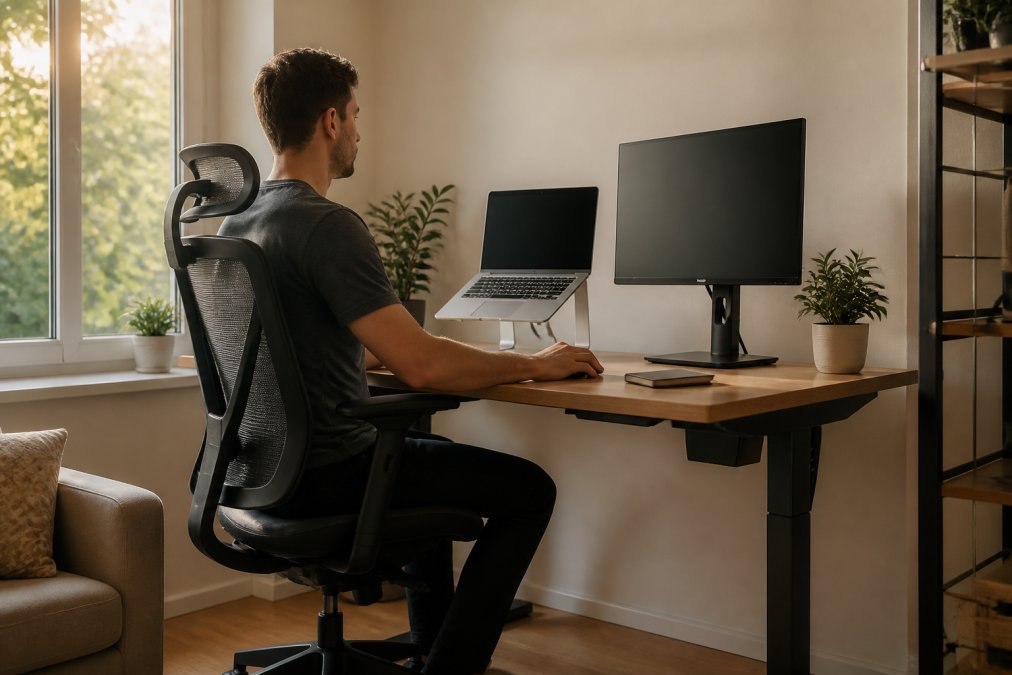
Choosing the Right Ergonomic Chair and Desk
Adjustability beats padding. A chair needs a seat height range that lets your feet sit flat, movable lumbar support, and armrests that tuck under the desk. Povison's 2026 trend analysis notes that adjustable standing desks and ergonomic seating have become foundational rather than optional, matching what we see in customer orders.
A common mistake is buying a fixed-height desk and then fighting it with cushions and footrests. If your budget only stretches to one adjustable item this year, make it the chair.
Monitor Arms, Laptop Risers, and Screen Positioning
Screen height is the cheapest ergonomic win available. A monitor arm or laptop riser costs a fraction of a chair and fixes neck strain immediately. The Modulemaster Laptop Stand is an adjustable option at $45.35 that lifts a laptop to a workable height and folds down for travel.
Set the monitor roughly an arm's length away, with the top of the screen at or just below eye level. If you use a laptop as a second screen, keep it low and angled, and center the primary display.
Best Home Office Lighting for Video Calls and Everyday Work
The best home office lighting for video calls is a soft, diffused source placed in front of you, not above or behind. Overhead lighting casts shadows under your eyes, and a window behind your chair turns you into a silhouette.
Aim for two layers: ambient light for the room and a task lamp that lights your desk without glaring into the lens. Position the lamp at roughly 45 degrees to your face, never directly behind your monitor.
Color temperature matters more than brightness for calls. A neutral white in the 4000K to 5000K range reads as natural on most webcams; warm bulbs look yellow and cool bulbs look clinical.
For audio, the 2-Pack Wireless Lavalier Clip-On Microphones at $21.97 solve the echo problem that built-in laptop mics create in hard-floored rooms. If you would rather not clip anything on, the LED Display Noise-Canceling Bluetooth Earbuds at $17.99 cover both audio and call clarity in one device.
Home Office Cable Management Tips for a Clutter-Free Workspace
Home office cable management tips that hold up follow one principle: route once, then never think about it again. The goal is a desk you can unplug and move without untangling a nest.
Start with power. A single desktop charging station with enough outlets for your monitor, laptop, lamp, and phone replaces the daisy chain of strips under most desks. The Power Bar with USB at $20.09 offers four AC outlets and three USB ports with overload protection, and its flat plug fits behind furniture without blocking the wall plate.

Then handle the runs:
- Bundle cables behind the desk with adhesive clips, not tape
- Label both ends of every cable you cannot see
- Leave one spare USB-C run in place for devices you add later
- Keep power and data cables separated where they run parallel
Peripherals and Productivity Tech That Earn Their Desk Space
Peripherals should solve a specific problem you already have. If you cannot name the problem, the device ends up in a drawer, where most home office budgets quietly leak. Buy against a failure point, not a feature list.
Most remote workers hit one of four failures: input fatigue (aching wrists by mid-afternoon), call quality (distant or echoey sound), device switching (jugging a laptop, tablet, and phone), or surface clutter. Each has a cheap, targeted fix.
Input Devices: Keyboard and Mouse
Match the keyboard to how you type, not how it looks. A full-size board with a number pad suits all-day data entry; a tenkeyless or 75% board is better if you need mouse room. Split and tented keyboards help inward-rolling wrists but carry a week-long learning curve. For most people, the practical upgrade is a slight negative tilt (back edge raised) to keep wrists neutral.

On the mouse side, the two specs that matter are DPI range and whether it recharges. Adjustable DPI lets you slow the cursor for precision work and speed it up for navigation. A rechargeable mouse removes the battery drawer problem. The 2.4G Wireless Mouse with RGB Backlit at $12.94 covers both, with adjustable DPI and a rechargeable cell, and it avoids a cable across the desk.
If you split time between a tablet and a laptop, a multi-device keyboard earns its space. The Portable Foldable Keyboard at $30.21 pairs with three devices and folds to pocket size, which makes it genuinely useful for travel rather than just novel. The trade-off is key travel: folding keyboards are shallower than a full desktop board, so they are a second keyboard, not a replacement for one.
Webcams, Microphones, and Call Quality
Built-in laptop webcams are the weakest link in most setups. A 1080p external webcam at eye level fixes framing, and one with a privacy shutter solves the camera-always-on problem in a single purchase. Mount it on the monitor, not the laptop lid, so framing stays consistent when you move.
Audio matters more than video on calls, and it is cheaper to fix. A clip-on lavalier mic placed six to eight inches below your chin removes the hollow, roomy sound that laptop mics produce in hard-floored rooms. The 2-Pack Wireless Lavalier Clip-On Microphones at $21.97 covers this for two people or two locations. If you would rather not clip anything on, the LED Display Noise-Canceling Bluetooth Earbuds at $17.99 handle both audio and call clarity in one device, with the trade-off that in-ear buds can fatigue over a long call day.
Storage and Desk Organizers
Storage is the unglamorous half of this category. A desk organizer set keeps mail, notes, and stationery from colonizing the working surface, and the Gold Desk Organizer Set at $51.02 covers six pieces in one purchase. The rule of thumb: if an item has no home within arm's reach, it will live on the desk. Give paper, pens, and chargers a designated tray, and the surface stays clear.
A Simple Decision Framework
Before buying any peripheral, run it through three questions:
- Which failure point does this solve? If you cannot name one, skip it.
- Does it replace something, or add to the pile? Replacements earn space; additions usually do not.
- Will it still be useful if your setup changes? A multi-device keyboard survives a laptop swap; a single-device dongle does not.
Small Space and Acoustic Solutions for Modern Home Office Essentials
Most home office guides assume a dedicated room. Most people do not have one. If your office is a closet, a bedroom corner, or one end of a dining table, the standard checklist fails you, and so does the advice to "just add a bookshelf." Small setups hit two real constraints: no room for furniture, and no acoustic treatment.
Closet Offices and Nook Setups
A closet office works if you treat the closet as a vertical cabinet, not a room:
- Depth beats width. A 24-inch-deep closet fits a shallow desk and a chair that tucks fully under it. Measure the chair's seat depth plus two inches of clearance before you buy anything.
- Clamp, do not sit. A monitor arm that clamps to the desk edge replaces a monitor stand and frees the entire desk surface. A clamp-on lamp replaces a floor lamp that would never fit.
- Go up, not out. A wall-mounted shelf above the desk holds the printer, router, and paper. A pegboard on the side wall holds cables, headphones, and tools.
- Plan for the door. If the closet has a door, either remove it or choose a desk shallow enough that the door closes over the chair. A bifold or sliding door is the friendliest option.
For a nook, a bedroom or living room corner, the constraint is visual, not physical: the setup should disappear when you are not working. A folding desk or drop-leaf table reclaims the floor, a monitor arm that swings flat against the wall hides the screen, and a single lidded bin under the desk swallows the keyboard, mouse, and notebook at day's end.
Acoustic Treatment for Calls
Acoustics are the problem small setups share, and software does not solve them. Hard floors, bare walls, and a single window produce the hollow, echoey sound that makes calls tiring. The fix is absorption, and it is cheaper than most people expect.
The principle is simple: soft, irregular surfaces break up reflections. A rug covers the hard floor, a bookshelf with varied book heights scatters sound, and a fabric panel or heavy curtain behind your chair absorbs the reflection bouncing into your mic. You do not need to treat the whole room, just the surfaces directly behind and beside you.
A practical order of operations for a small office:
- Add a rug or a thick mat under the desk first. This is the single highest-impact, lowest-cost change.
- Hang a fabric panel or a dense curtain on the wall behind your chair.
- Fill one shelf with books or fabric bins to break up a bare wall.
- If echo persists, add a second panel on the side wall nearest your mic.
Noise-canceling earbuds handle the noise coming in; soft surfaces handle the noise bouncing around the room. The two solve different problems, and most small setups need both. The LED Display Noise-Canceling Bluetooth Earbuds at $17.99 cover the inbound side, while a rug and a panel cover the outbound side that your callers actually hear.
Conclusion
Building a home office in the right order is harder than buying the right products, because the tempting items are rarely the important ones. Fix the chair and screen height first, then lighting, then power and cabling, and only then the peripherals that make the work pleasant.
TechyDealy carries the pieces that fill those later tiers without a premium markup: adjustable laptop stands, rechargeable wireless mice, foldable keyboards, and desktop power stations with overload protection. Every order ships with complimentary ground shipping, and returns are refunded at the full purchase price if something does not fit your setup.
Shop Smart Essentials and build the desk around your posture, not your wishlist.
Frequently Asked Questions
What are the essential office supplies I need for my home office?
Start with the foundational tier: an ergonomic chair, an adjustable desk or standing desk converter, and a monitor at eye level. Then add input devices like a mechanical keyboard and wireless mouse, task lighting, and a surge-protected power strip. Cable management and storage organizers come next. The chair and desk form the priority hierarchy before you add peripheral tech.
What are the must-have home office gadgets for 2026?
For 2026, noise-canceling earbuds, a USB-C hub or power bar with USB ports, and a laptop riser round out a modern setup.
How do I organize a small home office space effectively?
Prioritize vertical storage and multi-functional furniture. Use a monitor arm instead of a bulky stand to reclaim desk surface, mount a power strip under the desk, and choose a desk organizer set that consolidates mail, pens, and notes into one footprint. Foldable keyboards and compact peripherals help you pack the workspace away when the room serves double duty. Acoustic panels and a desk mat also reduce visual and audio clutter without requiring extra floor space.
What should every home office have for video calls?
A quality webcam, a dedicated microphone (lavalier or USB), and lighting that faces you rather than sitting behind you. For video calls specifically, avoid overhead-only lighting that casts shadows, and position a task lamp at eye level or slightly above.
How many items should be on a modern home office essentials list?
A practical list runs 10 to 15 items across four tiers: foundation (chair, desk), display (monitor, arm, riser), input (keyboard, mouse), and support (lighting, power, cable management, storage, audio). Build the foundation first, then add peripherals as your budget allows.