

Table of Contents
- Why Your Smart Home Devices Keep Losing Connection
- Start With a Full Network Power Cycle
- 2.4GHz vs 5GHz for Smart Home Devices: Which Band to Use
- Check Signal Strength and Reduce Interference
- Troubleshooting Smart Home Hub Connection Problems
- How to Reset Smart Home Devices Without Losing Settings
- When to Call Your Internet Provider
- Final Checklist for a Stable Smart Home Network
- Frequently Asked Questions
Last Updated: September 7, 2026
When troubleshooting smart home device connectivity issues, the culprit is rarely the device itself. An analysis of 50,000 troubleshooting queries found that devices appearing offline or reporting "No Response" account for 21% of all smart home issues, making it the single most common failure point Trunetto analysis of 50,000 troubleshooting queries. Troubleshooting smart home device connectivity issues starts with understanding that your network infrastructure, not the gadget, is usually the problem. Troubleshooting smart home device connectivity issues often reveals that the fix is simpler than you might think.
The scale of this problem is growing. The U.S. smart home market is projected to reach $54.5 billion in 2026, with active households expected to hit 93.59 million RubyHome smart home market projections. With the average household now running 21 connected devices, network congestion and configuration errors have become inevitable ConsumerAffairs connected device research. Below, we'll walk through a systematic approach to diagnosing and fixing connectivity failures, from basic power cycles to advanced network segmentation.
Why Your Smart Home Devices Keep Losing Connection
Connectivity loss in smart home devices typically stems from three root causes: Wi-Fi band misconfiguration, IP address conflicts, and cloud service dependency. Pairing failures involving Matter, Thread, or bridge connectivity account for 15% of all troubleshooting queries, while automations failing to run represent another 11% Trunetto smart home failure analysis.
Network congestion is the silent killer. When 20-plus devices compete for bandwidth on a single router, latency spikes and devices drop offline. Most consumers don't realize their router's default settings prioritize speed over stability, which causes older IoT devices to lose their connection.
Cloud dependency creates another failure layer. Many devices route commands through cloud servers, so when your internet connection hiccups, devices appear unresponsive even though they're functioning locally. Research from the University of Washington smart home study found that lack of transparency in device behavior is a primary driver of user frustration and perceived connectivity failure.
Start With a Full Network Power Cycle
A full network power cycle resolves more connectivity issues than any other single step. This means restarting your modem, router, and any network switches or mesh nodes in the correct order.
- Unplug your modem and router simultaneously
- Wait 60 seconds to allow capacitors to fully discharge
- Plug the modem back in and wait for all indicator lights to stabilize
- Plug the router back in and wait 2-3 minutes for it to broadcast
- Restart your smart home hub or bridge last
The key is patience. Most people restart their router and immediately try reconnecting devices, which fails because the network hasn't fully initialized. Wait until your router's internet LED is solid, then reconnect your smart devices one at a time.
This process clears DHCP lease conflicts, resets DNS resolution, and forces devices to re-authenticate with fresh network credentials. It's the digital equivalent of clearing your throat before speaking.
2.4GHz vs 5GHz for Smart Home Devices: Which Band to Use
The 2.4GHz band is the correct choice for nearly all smart home devices. While 5GHz offers faster speeds, its shorter range and poorer wall penetration make it unsuitable for most IoT gadgets. Smart plugs, cameras, sensors, and locks almost universally require 2.4GHz connectivity.
The exception is high-bandwidth devices like streaming cameras and video doorbells, which benefit from 5GHz when they're within range of the router. The trade-off is reliability versus throughput.
| Network Band | Range | Speed | Best For | Limitations |
|---|---|---|---|---|
| 2.4GHz | ~150 feet indoors | Up to 600 Mbps | Sensors, locks, plugs, hubs | Congestion from neighboring networks |
| 5GHz | ~50 feet indoors | Up to 1 Gbps | Cameras, video doorbells | Poor wall penetration |
| 6GHz | ~40 feet indoors | Up to 2 Gbps | Newer Wi-Fi 6E devices | Requires compatible hardware |
Many routers broadcast both bands under a single SSID, which causes devices to "hop" between frequencies and drop connections. If you're troubleshooting persistent offline issues, split your SSIDs so each band has a distinct name, then connect IoT devices specifically to the 2.4GHz network.
Check Signal Strength and Reduce Interference
Signal strength is measured in RSSI (Received Signal Strength Indicator), with values between -50 dBm and -65 dBm being optimal for smart home devices. Anything below -70 dBm will cause intermittent disconnections and slow response times.
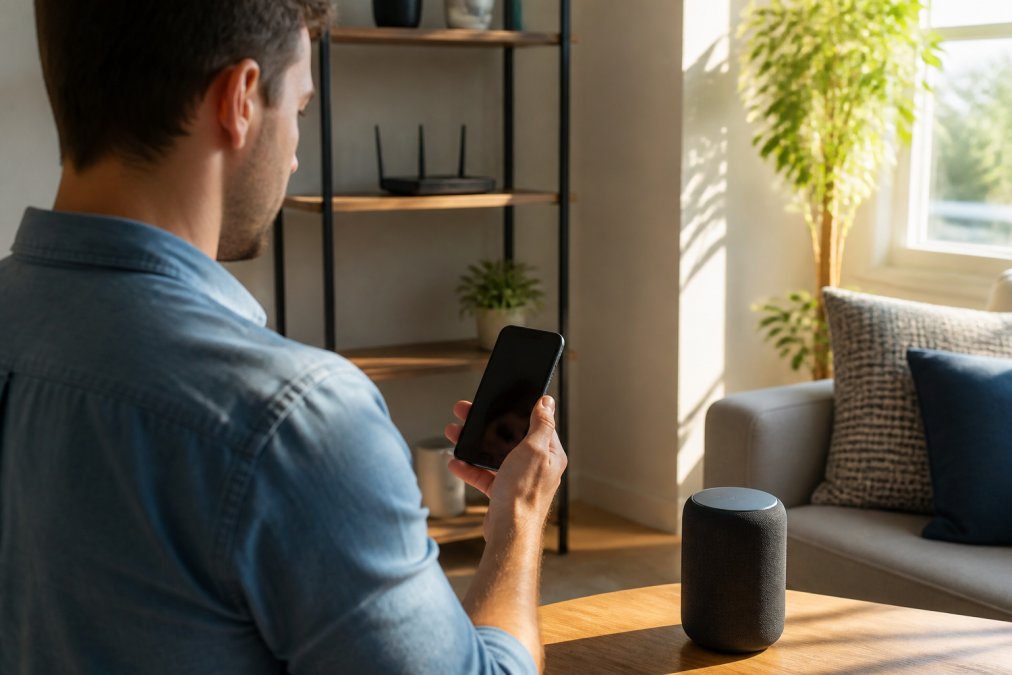
Physical obstructions are the most common cause of weak signals. Walls, floors, appliances, and even large furniture degrade signal quality. Mirrors and metal objects are particularly problematic, reflecting signals rather than allowing them to pass through.
Sources of interference to eliminate:
- Microwave ovens operating near your router or devices
- Cordless phones using the 2.4GHz spectrum
- Bluetooth devices in close proximity
- Baby monitors and wireless cameras
- Neighboring Wi-Fi networks on overlapping channels
If moving devices isn't practical, consider a mesh network system that extends coverage without requiring Ethernet cabling. Mesh systems use multiple nodes to create a single unified network, eliminating dead zones that cause devices to drop offline.
Troubleshooting Smart Home Hub Connection Problems
Smart home hubs act as central translators for Zigbee, Z-Wave, Matter, and Thread devices. When the hub loses connectivity, every device connected to it appears offline simultaneously. This is distinct from individual device failures and requires a different diagnostic approach.
Begin by checking the hub's status LED. A solid green light indicates normal operation, while blinking amber typically signals a firmware update in progress or a lost internet connection. Restart the hub by unplugging it for 30 seconds, then verify that companion devices reconnect automatically.
Protocol-specific issues to investigate:
- Zigbee and Z-Wave operate on mesh topologies where devices relay signals to each other. If one device fails, it can break the chain for devices further away. Move the hub to a central location and ensure at least two devices are within 30 feet of it.
- Matter and Thread rely on border routers to bridge local networks. If your Matter devices won't pair, confirm your hub supports the Matter standard and that firmware is current.
Research published in the IEEE Computer Society journal demonstrates that a centralized gateway architecture can mitigate common communication failures between disparate smart devices. Consolidating your Zigbee, Z-Wave, and Matter devices under a single hub reduces the number of failure points in your system.
How to Reset Smart Home Devices Without Losing Settings
A factory reset should be your last resort, not your first response. Most devices offer a soft reset that preserves your configuration while clearing temporary network errors. This distinction saves you from re-pairing every device in your home.
Soft reset procedure: Power cycle the device by unplugging it for 10-15 seconds. For battery-powered devices, remove the batteries for the same duration. This clears transient memory errors without wiping your settings.
Factory reset triggers: Only perform a full factory reset when the device fails to enter pairing mode after a soft reset, or when you're moving the device to a new network. Factory resets typically require holding a physical button for 10-30 seconds until an LED flashes, indicating the device has cleared its memory.
Before resetting any device, document your network configuration. Write down your SSID, password, and which band the device was connected to. This prevents the common mistake of resetting a device, then failing to re-pair it because you've forgotten which network credentials it requires.
When to Call Your Internet Provider
Persistent connectivity issues across multiple devices and bands indicate a problem with your internet service, not your smart home setup. If you've completed a network power cycle, verified signal strength, and confirmed your router configuration, it's time to escalate.
Signals that point to ISP issues:
- All devices lose connectivity simultaneously, including wired connections
- Your router's internet LED blinks red or remains dark
- Speed tests show significant packet loss or latency spikes
- Issues persist after connecting a device directly to the modem via Ethernet
Before calling, run a diagnostic test with your modem connected directly to a laptop. If the problem persists without your router in the chain, the fault lies with your ISP's connection. If the problem disappears, your router is the bottleneck.
Many ISPs now offer gateway devices that combine modem and router functions. These units often have limited configuration options, making it difficult to implement network segmentation or adjust band settings. Ask your provider about bridge mode, which disables the router function and allows you to use your own equipment.
Final Checklist for a Stable Smart Home Network
Use this checklist to systematically verify your network health and prevent future connectivity failures. Work through each item in order, testing your devices after each step.
- Split your SSIDs so 2.4GHz and 5GHz have distinct names
- Connect all IoT devices to the 2.4GHz network
- Verify RSSI signal strength is above -65 dBm for all devices
- Move the router to a central, elevated location away from metal objects
- Update router firmware to the latest version
- Enable DHCP reservation for smart home devices to prevent IP conflicts
- Disable MAC address filtering if devices fail to authenticate
- Check for cloud service outages before troubleshooting individual devices
- Document your network configuration for future reference
- Schedule a monthly power cycle to clear accumulated network errors
For homes with more than 15 connected devices, consider implementing network segmentation. Create a separate IoT network or VLAN that isolates smart home traffic from your primary network. This prevents bandwidth-heavy devices like streaming cameras from starving sensors and locks of connectivity.
The trend toward local control is gaining momentum, with troubleshooting guides increasingly emphasizing testing devices without cloud connections to isolate network failures The Smart Home Hookup connectivity guidance. Devices that support local processing remain functional even when your internet connection drops, providing a more resilient smart home experience.
A stable smart home network requires methodical troubleshooting, not guesswork. Start with a power cycle, verify your band configuration, check signal strength, and only escalate to resets or ISP calls when simpler fixes fail. When you're ready to expand your setup with reliable, interoperable devices, TechyDealy offers smart security cameras like the Wireless 2K Outdoor Solar Security Camera ($138.38), smart locks such as the Waterproof Smart Lock - Fingerprint, Password & Card Access for Sliding Doors ($143.99), and tracking devices like the MOMAX PinGuard: Smart Tracker & Hidden Camera Detector with Apple Find My Integration ($93.99). All orders are backed by complimentary ground shipping and hassle-free returns. Shop Smart Essentials and build a smart home that stays connected.

Frequently Asked Questions
Why do my smart home devices keep going offline?
The most common reason is Wi-Fi interference or weak signal strength. Devices on the 2.4GHz band face congestion from neighboring networks and appliances like microwaves. Power cycling your router and moving the device closer often solves it. Check the router's admin page for signal strength (RSSI) and aim for -60 dBm or better.
What is the first step when a smart home device stops responding?
Power cycle the device and your network. Unplug the router and modem for 30 seconds, then plug them back in. Restart the unresponsive device by removing its power source for 10 seconds. This clears temporary IP address conflicts and re-establishes the connection. If the issue persists, check for cloud service outages.
How do I know if my router is causing smart home connectivity problems?
Log into your router's admin page and check the device list. If the smart device appears but shows a weak signal (below -70 dBm RSSI), the router is likely the bottleneck. Try disabling MAC address filtering temporarily to rule out authentication blocks. Also verify your router's firmware is current, as outdated versions cause compatibility issues.
Should I use 2.4GHz or 5GHz for my smart home devices?
Use 2.4GHz for most smart home devices. It travels farther and penetrates walls better than 5GHz. Many devices like cameras and sensors only support 2.4GHz anyway. If you have a dual-band router, check the device specs and connect to the matching SSID. For bandwidth-heavy devices like streaming cameras, 5GHz works better when the device supports it.