

Table of Contents
- Refurbished vs Used Gaming PC: What's the Real Difference
- Tip 1: Verify Refurbished Gaming Gear Warranty Coverage Before You Pay
- Tip 2: How to Test Refurbished Gaming Hardware in Person or on Arrival
- Tip 3: Inspect Cosmetic Condition and Component Longevity
- Tip 4: Check Firmware, BIOS, and Driver Compatibility
- Tip 5: Stress Test for Thermal Throttling and Cooling Health
- Tip 6: Price-to-Performance Ratio and Depreciation Math
- Tip 7: Buy Certified Refurbished from a Reputable Retailer
- Frequently Asked Questions
Last Updated: September 28, 2026
Refurbished vs Used Gaming PC: What's the Real Difference
Refurbished gaming gear costs 30% to 50% of the original MSRP, according to DIY in 5's cost-benefit analysis of secondary market hardware, which is why more buyers are shopping the secondary market in 2026. But the gap between "refurbished" and "used" is where most people lose money. Refurbished gaming gear is hardware that a seller or manufacturer has inspected, repaired, and tested before resale, often with a warranty attached.
Here's the short version before we go deep:
| Category | Inspection | Warranty | Typical Price vs MSRP |
|---|---|---|---|
| Certified refurbished | Full functional test | 90 days to 1 year | 30-50% |
| Open-box | Inspected, unused | Varies by retailer | 10-25% |
| Used (private sale) | None guaranteed | None | 40-60% |
Tip 1: Verify Refurbished Gaming Gear Warranty Coverage Before You Pay
Warranty coverage is the single most important factor in a refurbished purchase. A 2026 head-to-head test by GamingPCGuru's platform risk assessment scored major resale platforms on their ability to provide recourse for faulty hardware, and certified refurbished programs consistently beat independent marketplaces on warranty and post-purchase support.
Before you pay, get three things in writing:
- Who honors the warranty, the manufacturer, the refurbisher, or the platform
- What it covers, hardware failure only, or also cosmetic defects and battery degradation
- The return window and restocking fees, some sellers charge 15% to take gear back
Tip 2: How to Test Refurbished Gaming Hardware in Person or on Arrival
Testing refurbished gaming hardware means verifying every port, input, and output before the return window closes. If you buy in person, ask the seller to demonstrate the hardware running a real game, not just booting to a desktop.
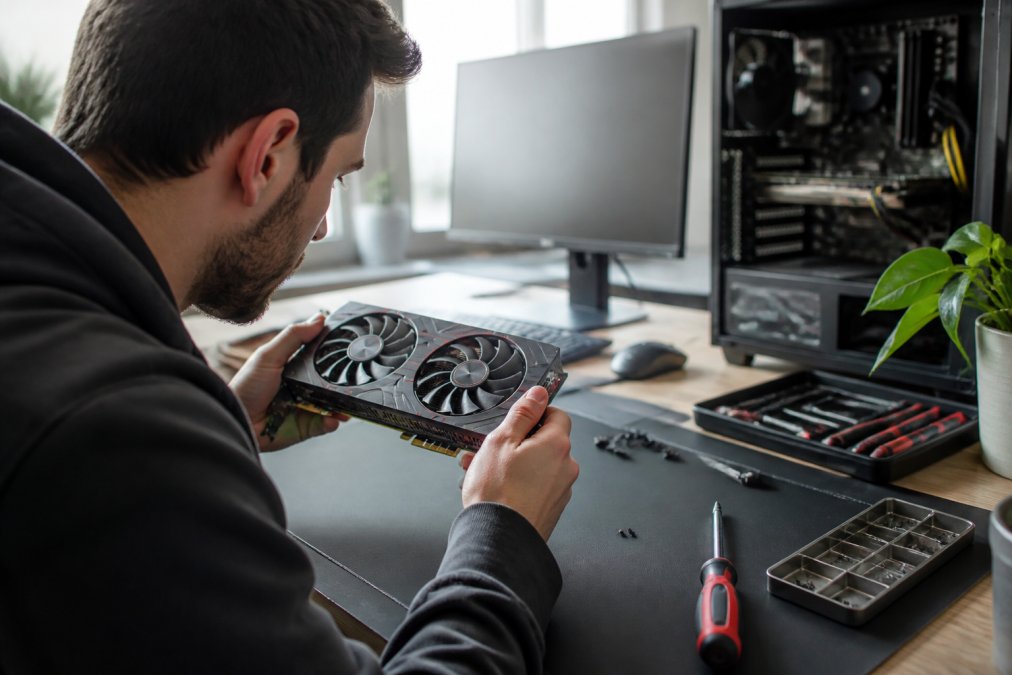
Run this checklist the day your gear arrives:
- Boot into BIOS and confirm the CPU, RAM, and GPU match the listing
- Test every USB, HDMI, and DisplayPort connection
- Check webcam, microphone, and audio jacks for input lag
- Verify the refresh rate matches the advertised spec
- Confirm the serial number against the seller's listing
Tip 3: Inspect Cosmetic Condition and Component Longevity
Cosmetic condition tells you how the previous owner treated the hardware. Scratches on a case are harmless. Dust packed into a cooling system, sticky residue around ports, or a swollen battery are not.
Look for these signals of component longevity:
- Fan noise at idle, a grinding fan means bearing wear
- Case screws, stripped heads suggest repeated amateur repairs
- Thermal paste residue, visible seepage means someone has already reseated the cooler
- Screen discoloration or pixel defects, check on a solid black and solid white background
Tip 4: Check Firmware, BIOS, and Driver Compatibility
Firmware and BIOS updates are the step most buyers skip, and it's where hidden problems surface. On gaming hardware specifically, the BIOS isn't just a bootloader. It controls features that directly move frame rates, and a refurbished board shipped with an old firmware revision can leave performance on the table even when the silicon is fine.
The gaming-specific BIOS features to verify
- Resizable BAR / Smart Access Memory: This lets the CPU access the full GPU frame buffer instead of 256 MB windows. On supported GPUs it can add measurable frame-rate gains in some titles. It requires a compatible motherboard BIOS, a compatible GPU VBIOS, and it must be enabled in BIOS. A refurb can have any one of those three out of date.
- AGESA / microcode revision: On AMD platforms, the AGESA version in the BIOS governs memory compatibility and stability. An old AGESA can cause memory instability that only shows up under load, which looks exactly like a hardware fault.
- PCIe link width and generation: Confirm in BIOS or GPU-Z that the card is running at its rated PCIe generation and x16 (or x8) width. A refurb that negotiated down to PCIe 3.0 x4 because of a bad slot or riser cable will underperform and you'll blame the GPU.
- VBIOS version: For GPUs, check the VBIOS revision against the manufacturer's database. A card flashed with a mismatched or mining-modified VBIOS may run, but with wrong power limits and fan curves.
The verification sequence
- Note the current BIOS version from the boot screen or with a tool like CPU-Z's Mainboard tab.
- Check the manufacturer's support page for the latest release and read the changelog. Update only if it addresses a problem you have or unlocks a feature you need.
- Install the GPU driver from the chip maker's own tool (NVIDIA App or AMD Software), not a generic package or a third-party driver bundle.
- Confirm the driver version matches your exact card model. A driver for a different SKU can install cleanly and still misbehave.
- Re-run a short benchmark before and after any BIOS or driver change so you can attribute the difference.
Why this matters more on refurbished gear
Once firmware, BIOS, and drivers are confirmed current and correctly configured, you've eliminated the software layer as a variable. Everything that misbehaves after that is a hardware question, and you can pursue it with the seller on solid ground.
Tip 5: Stress Test for Thermal Throttling and Cooling Health
Thermal throttling is the silent killer of refurbished performance. A system can hit its advertised benchmark once, then drop 20% of its frame rate after ten minutes because the cooling system can't keep up. Most buying guides stop at "check the temps." This section gives you the actual protocol.
The 30-minute burn-in protocol
Run a sustained load test for at least 30 minutes, not a 60-second benchmark. Short runs hide throttling because the cooler's heat soak hasn't happened yet. A common pattern among refurb hunters is to run two tools back to back:
R36S Handheld Game Console 3.5Inch IPS →
- GPU load: FurMark's built-in stability test, or the free 3DMark Time Spy stress test loop (20 iterations). FurMark pushes the GPU toward its power limit; Time Spy measures whether frame-rate consistency holds across repeated runs.
- CPU load: Cinebench R23 in a 10-minute throttle test, or Prime95 Small FFTs if you want the harshest thermal load.
- Combined load: Run a real game at your target resolution for 20 minutes after the synthetic tests. Synthetic tools stress one component; games stress the whole power delivery path.
What to monitor and what counts as a fail
Keep a hardware monitor open the entire time. HWiNFO64 and MSI Afterburner both log to CSV so you can review the curve afterward instead of staring at a number.
- GPU core temp: Sustained readings above 83-85°C on most air-cooled cards indicate the cooler is struggling. Junction/hotspot temps running 15-20°C above core temp is normal; a 30°C+ delta points to dried paste or poor mounting pressure.
- CPU temp: Many desktop chips are rated to run in the 90s°C under load, but a refurb that pins at its thermal limit within two minutes of Cinebench is a cooling problem, not a chip problem.
- Clock behavior: Watch the effective clock, not the boost clock. If clocks fall steadily across the run and never recover, the cooler can't dissipate the heat.
- Fan behavior: A fan that ramps to 100% and stays pinned, or one that never spins up under load, is a fail either way.
- Stability: Any black screen, driver timeout, or system restart during the run is a hard fail. Do not accept "it just needs a driver update" as an explanation before you've ruled out thermals.
The maintenance fix most guides skip
Run this protocol inside the return window. A card that passes a 30-minute burn-in with stable clocks and sane temps is a card you can trust for years. One that throttles on day one will throttle harder in month six.
Tip 6: Price-to-Performance Ratio and Depreciation Math
Use this formula to score any listing:
Value score = (benchmark score ÷ price paid) × remaining warranty months
Tip 7: Buy Certified Refurbished from a Reputable Retailer
Certified refurbished systems are increasingly favored over private sales because buyers get better protection, according to Alibaba's electronics buying guide. That trend reflects a simple reality: the platform you buy from matters as much as the hardware itself.
Frequently Asked Questions
Is it risky to buy refurbished gaming gear?
Risk depends on where you buy. Community data from 18 months of warranty claim tracking shows the biggest trap is failing to verify the refurbisher's specific warranty terms, not the hardware itself. Certified refurbished programs on major platforms consistently score better on risk than private peer-to-peer sales because they offer documented recourse. Refurbished gear typically costs 30% to 50% of original MSRP, so the savings are real if you buy from a seller with a written return policy.
What is the difference between used and refurbished gaming hardware?
Used gear is sold as-is, often by a private seller with no testing or warranty. Refurbished gear has been inspected, repaired if needed, and resold by a professional refurbisher or manufacturer. Certified refurbished units go through functional testing and come with a warranty, while private used sales usually offer neither. For a refurbished vs used gaming PC decision, the refurbished route costs more upfront but gives you recourse if a component fails.
Does refurbished gaming gear come with a warranty?
It depends on the seller. Manufacturer-direct refurbishers and certified refurbished programs typically include 90-day to 1-year warranties covering hardware failure. Independent marketplaces often offer only as-is sales with no coverage. Before buying, confirm the warranty length, what it covers, who pays return shipping, and whether restocking fees apply. A written warranty claim process is the single strongest signal that a refurbisher stands behind its hardware.
What should I check first when buying a refurbished gaming PC?
Start with the warranty terms. Ask the seller to run a stress test and share thermal readings, since thermal throttling is a common hidden issue in older systems. Check port functionality, pixel defects, and screen discoloration if a monitor is included. Finally, confirm the operating system installation is legitimate and firmware updates are current before you pay.
How can I verify the quality of refurbished electronics before buying?
Request a live demonstration or video showing the hardware running a benchmark, not just sitting idle on a desk. Ask for battery health and cycle counts on laptops and handhelds, and check for cosmetic wear that signals heavy use. Verify firmware and BIOS versions are current, and confirm driver compatibility with your intended games. A seller who refuses to demonstrate the hardware in a working state is a red flag.
The secondary market rewards buyers who do the boring verification work and punishes everyone else. TechyDealy makes that easier by stocking certified, tested gear with complimentary ground shipping and a hassle-free return policy that refunds your full purchase price. Browse the gaming collection, confirm the specs, and upgrade your setup without the marketplace risk. Shop smart essentials at TechyDealy and build a rig that lasts.