

Table of Contents
- What You'll Need Before You Start Your Smart Home Setup
- How to Connect Smart Devices to Wi-Fi
- Best Smart Home Hubs for Beginners
- Matter Smart Home Compatibility: What It Means for Your Setup
- Smart Home Security Best Practices
- Common Mistakes to Avoid During Smart Home Setup
- Frequently Asked Questions
Last Updated: September 15, 2026
What You'll Need Before You Start Your Smart Home Setup
The U.S. smart home market is projected to reach $54.53 billion in 2026, according to RubyHome's smart home statistics(https://www.rubyhome.com/blog/smart-home-stats/), and that growth means more first-time buyers than ever are learning how to set up smart home gadgets without a professional installer. The good news: most devices now finish basic configuration in under three minutes. This guide walks through the exact sequence we recommend, from network prep to security hardening.
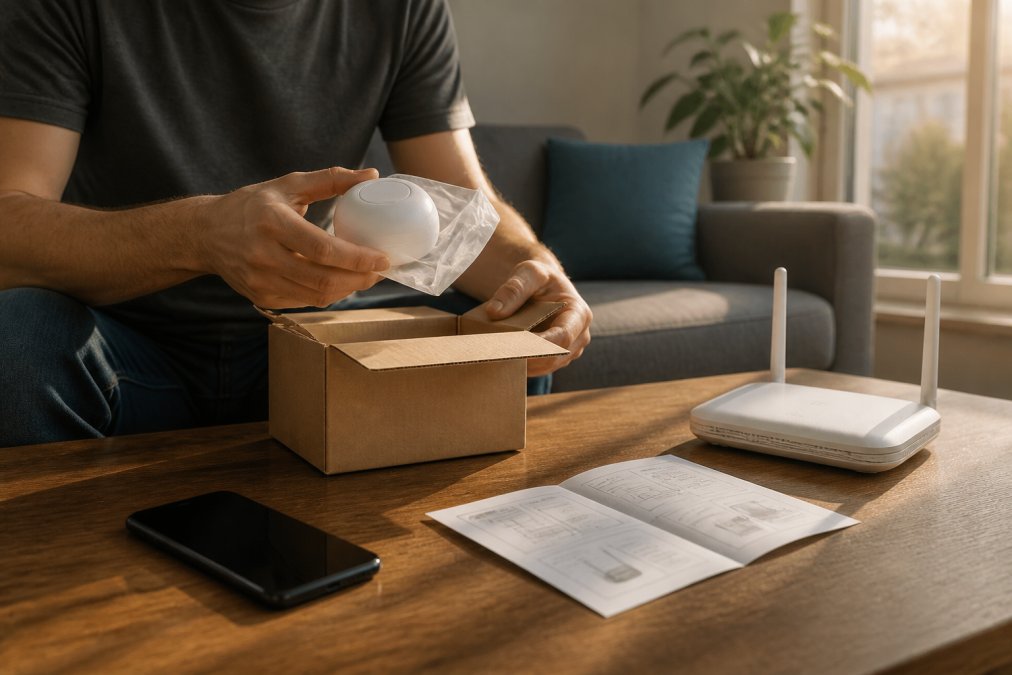
Essential Tools and Accounts
Before you unbox anything, gather the basics. You need a working Wi-Fi network, a smartphone with the manufacturer's companion app installed, and login credentials for each device brand. Skip this step and you'll be re-entering passwords across five apps later.
- A stable 2.4 GHz Wi-Fi network (most smart plugs and bulbs require it)
- Manufacturer companion apps downloaded in advance
- A password manager for device credentials
- The router admin login, in case you need to adjust settings
Quick Setup Checklist
Work through this list in order. Skipping steps here is the single most common cause of pairing failures.
- Confirm your router broadcasts a 2.4 GHz band
- Download every companion app before opening boxes
- Create a dedicated guest network for smart devices
- Enable two-factor authentication on each account
- Label each device in its app immediately after pairing
How to Connect Smart Devices to Wi-Fi
Connecting smart devices to Wi-Fi is the step where most setups stall. The fix is almost always the network band, not the device. Most smart plugs, bulbs, and sensors only see 2.4 GHz networks, so a phone locked to 5 GHz will fail to hand off credentials during pairing.
2.4 GHz vs. 5 GHz Networks
A 2.4 GHz band travels farther and penetrates walls better, which suits smart devices scattered across a house. The 5 GHz band is faster but shorter-range, better for laptops and streaming. If your router broadcasts both under one name, temporarily split them during setup so your phone can join the 2.4 GHz network directly.
Step-by-Step Pairing Process
- Open the companion app and create your account
- Put the device in pairing mode (usually a button hold until an LED blinks)
- Connect your phone to the 2.4 GHz network
- Enter your Wi-Fi password in the app
- Wait for confirmation, then rename the device
- Test with a manual command before moving to the next device
Expected Result: The device appears as "online" in the app and responds within one to two seconds.
Best Smart Home Hubs for Beginners
The best smart home hub for beginners is one that supports Matter and Thread, because it future-proofs your setup against the protocol churn that plagued earlier generations. But before you buy one, it helps to understand what a hub actually does, and whether you need one at all.
A hub is a small always-on computer that sits on your network and does three jobs: it speaks the radio protocols your devices use (Zigbee, Z-Wave, Thread, Bluetooth LE), it runs automation rules locally so routines fire even when the internet is down, and it bridges those devices to your phone and voice assistant. A Wi-Fi smart plug doesn't need a hub, it talks directly to your router. A Zigbee door sensor usually does, because Zigbee isn't a Wi-Fi protocol.
Do You Actually Need a Hub?
| Your situation | Hub needed? | Why |
|---|---|---|
| A few Wi-Fi plugs and bulbs | No | They connect straight to your router |
| Zigbee/Z-Wave sensors, locks, or buttons | Yes | Those radios need a bridge to reach Wi-Fi |
| You want routines to run during an internet outage | Yes, one with local control | Cloud-only hubs stop working offline |
| You're all-in on one brand's app | Maybe | Some brand apps act as a hub for their own gear |
The Local-Control Trade-Off
This is the part most beginner guides skip. A cloud-dependent hub sends every automation decision to a server farm: your "lights on at sunset" rule is really a server telling your bulb to turn on. If your internet drops, the rule stops. A hub with local control, Matter and Thread controllers, and hubs that advertise local automation, runs those rules on the box in your closet. The practical difference shows up the moment your ISP has an outage and your lights still respond.
The trade-off is setup friction. Local hubs often have clunkier apps, fewer cloud conveniences like remote access from outside the home, and a steeper learning curve. If you value privacy and reliability over polish, that's a fair trade. If you want the simplest possible experience and don't mind the cloud, a mainstream voice-assistant speaker can serve as a light-duty hub.
Hub Placement and Capacity
Two mistakes sink beginner hubs. First, placement: a hub in a metal cabinet, behind a TV, or in a basement corner will drop Zigbee and Thread signals that have to hop through walls. Put it central and elevated. Second, capacity: a single hub can typically handle dozens of devices, but each Zigbee or Thread device that also acts as a repeater (most mains-powered ones do; battery devices usually don't) extends your mesh. Battery sensors at the edge of your home benefit from a mains-powered device between them and the hub.
If you're building a security-focused system, a hub that supports local control matters more than raw device count. For security-focused systems, consider the Wireless 2K Outdoor Solar Security Camera at $138.38.

Matter Smart Home Compatibility: What It Means for Your Setup
Matter smart home compatibility is a connectivity standard that lets devices from different brands work together without proprietary bridges. It's the industry's answer to the interoperability mess that made early home automation frustrating. When a device carries the Matter logo, it should pair with any Matter-certified hub regardless of manufacturer.
This matters because it changes your buying math. Instead of committing to one ecosystem, you can mix brands and still run unified automation routines. The catch: not every "works with Matter" claim means full feature parity. Some devices expose only basic functions through Matter and keep advanced settings in their own app.
Smart Home Security Best Practices
Smart home security best practices start with assuming your network is the weakest link, not your devices.
Network and Account Protection
Device-Level Security
Firmware Updates: The Maintenance Nobody Does
Build a maintenance rhythm:
Common Mistakes to Avoid During Smart Home Setup
Other frequent errors:
Frequently Asked Questions
What is the first step in setting up a smart home?
The first step is assessing your home network and choosing a central platform or hub. Make sure your Wi-Fi covers the areas where you plan to place devices, and decide whether you want to use a voice assistant like Alexa or Google Assistant as your main controller. Starting with a clear plan prevents compatibility headaches later. Many beginners begin with smart plugs and lights, which are easy to add and require minimal configuration.
Do I need a smart home hub to connect my gadgets?
Not always. Many smart devices connect directly to your Wi-Fi and can be controlled through a companion app without a separate hub. However, a hub becomes useful if you want to integrate devices from different brands, use Zigbee or Z-Wave sensors, or keep some automation running locally when the internet is down. For beginners, the best smart home hubs for beginners include models that support Matter and multiple wireless protocols, giving you flexibility as your setup grows.
How do I ensure my smart home devices are secure?
Follow smart home security best practices: change default passwords, enable two-factor authentication on your accounts, and keep firmware updated. Create a separate Wi-Fi network for your smart devices to limit access to your main network. Also, review each device's privacy settings and disable unnecessary data sharing. For outdoor devices like the Wireless 2K Outdoor Solar Security Camera, check for regular firmware updates from the manufacturer.
What is the Matter standard and why does it matter for my setup?
Matter is an industry-wide connectivity standard that lets smart home devices from different brands work together. If a device carries the Matter logo, it should pair easily with any Matter-compatible hub or app, reducing the risk of interoperability issues. When shopping, look for Matter smart home compatibility to future-proof your setup. This standard simplifies device pairing and improves local control, so your gadgets respond faster and rely less on cloud connectivity.
Setting up a smart home rewards patience over speed, and the payoff is a system that actually works together instead of fighting itself. TechyDealy stocks the security hardware, hubs, and privacy tools that make that foundation solid, with complimentary ground shipping and hassle-free returns on every order. Start with the essentials, harden your network, and expand as you go. Shop Smart Essentials at TechyDealy and build a setup that lasts.