

Table of Contents
- Understand Your Smart Home Protocols Before You Start
- Choose the Best Smart Home Hub for Beginners
- Step-by-Step Setup: How to Sync Smart Home Devices
- Smart Home Automation Troubleshooting: Fix Connection Issues
- Voice Assistant Compatibility and Cross-Platform Control
- Privacy and Security When Syncing Your Devices
- Managing Multiple Device Ecosystems Without Frustration
- Frequently Asked Questions
Last Updated: August 31, 2026
According to RubyHome's 2026 market analysis, the smart home market is projected to reach $54.53 billion by 2026, yet nearly one-third of smart homeowners still find devices confusing to set up and use. This guide from TechyDealy breaks down exactly how to sync smart home devices easily, whether you're adding your first device or integrating a multi-brand ecosystem into your home.
The frustration is real: you buy devices from different brands, suddenly you're juggling multiple apps, devices won't talk to each other, and automation feels impossible. But the problem isn't your devices, it's approaching the sync process without understanding the foundation underneath.
Understand Your Smart Home Protocols Before You Start
A smart home protocol is the language devices use to communicate with each other and your central hub. Three major protocols dominate: Wi-Fi (longest range, higher power consumption), Zigbee and Bluetooth Low Energy (mesh protocols that relay signals through each other), and the newer Matter standard, which acts as a universal translator allowing devices from different brands to communicate seamlessly.
Jabil's 2023 Smart Home Technology Trends survey found that 97% of IoT device manufacturers are planning to integrate the Matter protocol. This eliminates the "walled garden" problem where Amazon devices only work well with other Amazon devices.
The wireless segment now accounts for 55.65% of the smart home market, driven by improvements in connectivity and consumer demand for convenience. Wireless reliability depends entirely on your network foundation. A weak Wi-Fi signal or interference from other devices will cause syncing failures.
Choose the Best Smart Home Hub for Beginners
A smart home hub is the central controller that ties everything together. It receives commands, manages automations, and handles communication between devices using different protocols.
For beginners, the choice depends on your ecosystem preference. Amazon Alexa dominates with 46% of smart homeowners using it as their primary platform. Google Home offers tight integration with Google services. Apple HomeKit prioritizes privacy and local processing. Samsung SmartThings works across multiple brands.
The best hub for you depends on what devices you already own. If you have an iPhone and iPad, HomeKit integrates with your existing ecosystem. If you're deep in the Google ecosystem, Google Home makes sense. For maximum flexibility with third-party devices, SmartThings accepts the widest range of brands.
Research from Horowitz Research's 2026 State of Media, Entertainment & Tech study shows that while Alexa remains the most commonly used platform at 46%, many households also use Apple HomeKit, Google Home, Samsung SmartThings, and individual device apps simultaneously.
Step-by-Step Setup: How to Sync Smart Home Devices
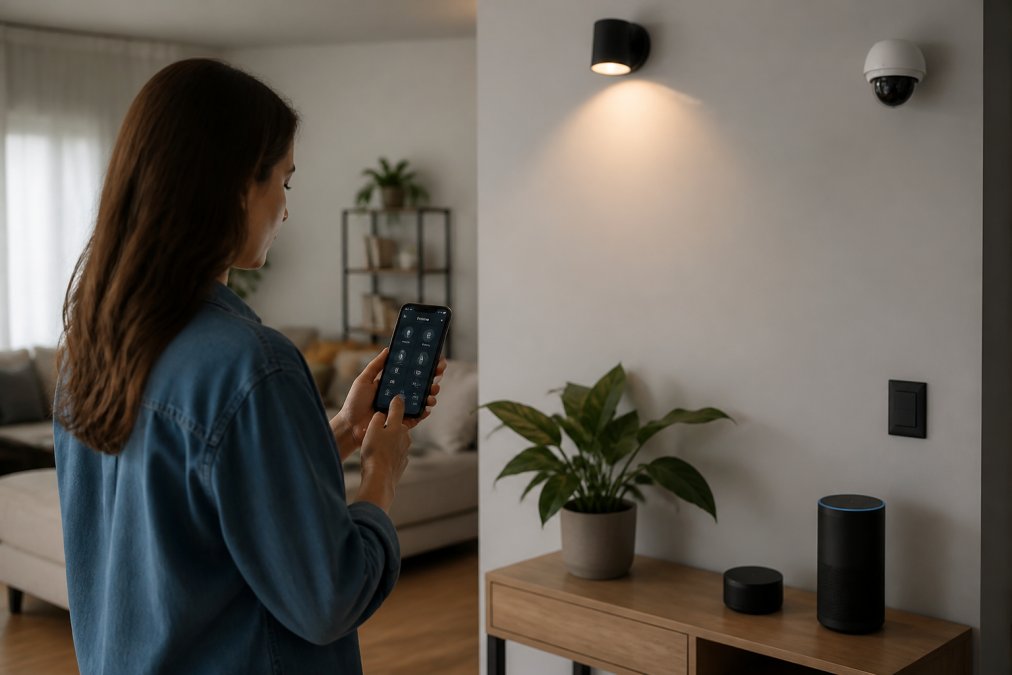
Prepare Your Network and Devices
Your network is the foundation. Smart home devices work best on a 2.4 GHz frequency, which has better range and wall penetration than 5 GHz. Most modern routers broadcast both frequencies simultaneously under the same network name (SSID), causing unpredictable connections. Create a separate 2.4 GHz network name in your router settings to ensure every smart home device connects to the correct frequency.
Position your router centrally in your home, not hidden in a closet or cabinet. If you're getting weak Wi-Fi in certain rooms, add a mesh router system or Wi-Fi extender before adding smart devices.
Reset every device to factory settings before pairing. This clears any previous configurations and ensures a clean sync. Most devices have a reset button you hold for 10-15 seconds until the light blinks.
Add Devices to Your Primary Hub
Open your hub's companion app and look for the device discovery or pairing mode option. Put your device into pairing mode simultaneously. Both devices will "see" each other within 30 seconds, and the app will detect the device and prompt you to name it and assign it to a room.
Name devices descriptively: "Living Room Light" is useful; "Light 1" is not. Room assignments enable voice commands like "Alexa, turn off the living room lights."
Connect the device to your Wi-Fi network when prompted. After connection, the device will sync with your hub automatically, typically in 30-60 seconds.
Integrate Third-Party Devices Across Brands
If the third-party device supports Matter, the process is seamless. Matter devices can be added to any Matter-compatible hub and will automatically sync across other Matter platforms you use.
For non-Matter devices, add the device through its own app and create automations that trigger across platforms. For example, a Philips Hue light can be controlled through the Hue app and also exposed to HomeKit, Alexa, or Google Home through "bridging."
Alternatively, use automation routines to create cross-platform logic. If you want a Zigbee motion sensor from one brand to trigger a Wi-Fi smart light from another, create a routine in your hub that says: "When motion is detected, turn on the light."
Smart Home Automation Troubleshooting: Fix Connection Issues
Device Discovery Failures
If your hub can't find a device during pairing, verify that both the hub and device are in pairing mode simultaneously. Many devices exit pairing mode after 60 seconds, so timing matters.
Check the physical distance. Move the device closer to your hub temporarily. If it pairs successfully, the issue is signal strength. Walls, metal objects, and other electronics create interference that weakens signals.
Restart the device by unplugging it for 30 seconds, then plugging it back in. If the device still won't pair, factory reset it and try again.
Wi-Fi Connectivity and Frequency Problems
Run a Wi-Fi speed test near your device's location using a smartphone. If you're getting less than 10 Mbps, your network is congested or too weak. Most smart home devices require only 1-2 Mbps, but competing devices consume bandwidth.
Check your router's Wi-Fi channel. Smart home devices on 2.4 GHz often interfere with each other if they're all on the same channel. Channels 1, 6, and 11 are standard in the United States and minimize overlap.
Disable any band steering on your router if it exists. Band steering automatically switches devices between 2.4 GHz and 5 GHz, which causes smart home devices to disconnect because they don't support 5 GHz.
Synchronization Delays and Automation Failures
If devices are connected but automations don't trigger reliably, the problem is usually cloud dependency or local processing issues.
Test your internet connection. If the internet is slow or intermittent, automations will be unreliable.
Check if your automation is set to local or cloud processing. Local processing is faster and more reliable because it doesn't depend on internet connectivity. Enable it for critical automations.
Reduce the number of simultaneous automations. If you have 50 automations running at once, conflicts and delays are inevitable. Prioritize critical automations and disable redundant ones.
Voice Assistant Compatibility and Cross-Platform Control
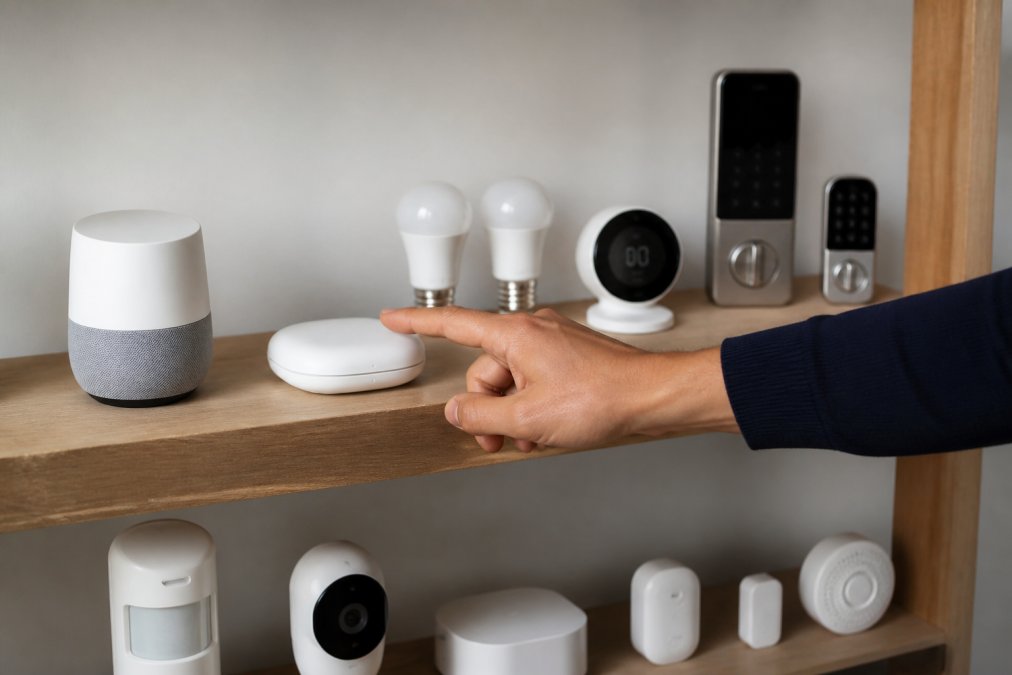
Voice control makes smart homes feel effortless. Alexa, Google Assistant, and Siri each have their own voice command syntax and automation capabilities.
Amazon Alexa uses routines for automations. "Alexa, good morning" can trigger lights, coffee maker, and news briefing simultaneously.
Google Home uses automation rules that trigger based on time, location, or device state. "When I leave home, turn off all lights" is a Google Home automation.
Apple HomeKit uses scenes and automations. "Hey Siri, movie time" can dim lights, close blinds, and turn on the TV. HomeKit automations are local-first, meaning they work even if your internet goes down.
If you want voice control across multiple platforms, expose your devices to all of them. A Philips Hue light can respond to Alexa, Google, and Siri commands simultaneously if you've added it to all three ecosystems.
Privacy and Security When Syncing Your Devices
When you sync smart home devices, you're creating a network that collects data about your daily life. Review the privacy policy of every device you add. Some manufacturers sell anonymized data to third parties. Others keep it private.
Local processing eliminates cloud dependency for core functions. HomeKit devices can process automations and voice commands locally without sending data to Apple's servers, making it recommended for privacy-conscious users.
Encryption protects data in transit between devices and servers. Matter protocol includes encryption by default, which is a security improvement over older protocols.
Change default passwords on every device and your hub. Many smart home devices ship with weak default credentials. Use a strong, unique password for each device if possible.
Enable two-factor authentication on your hub's cloud account. This prevents unauthorized access even if someone obtains your password.
Managing Multiple Device Ecosystems Without Frustration
Most households eventually use devices from multiple brands. Managing this complexity requires a clear strategy.
Designate one primary ecosystem for your core automations. Keep automations in this ecosystem as your source of truth. If something needs to trigger reliably, make it happen here first.
Use secondary hubs for brand-specific devices that don't integrate well with your primary ecosystem. If you have Philips Hue lights that work better through the Hue app, keep the Hue app as a secondary control interface.
Create a device inventory. Document every device you own, its protocol, which hub it's connected to, and what automations it participates in. This saves hours when troubleshooting.
Update firmware regularly. Manufacturers release firmware updates to fix bugs, improve compatibility, and add features. Most devices update automatically, but check your hub's settings to ensure automatic updates are enabled.
According to NIST's 2022 Consumer Perspectives study, many consumers aren't alerted when their devices stop receiving support. Unsupported devices pose security and reliability risks. If a device manufacturer stops supporting a product, plan to replace it within 12 months.
Syncing smart home devices easily comes down to understanding the foundation, choosing the right hub, and following a methodical setup process. Start with one ecosystem, master it, then expand carefully.
TechyDealy specializes in curated smart home gadgets that prioritize compatibility and reliability. Our selection includes devices like the Wireless 2K Outdoor Solar Security Camera ($138.38) and the Waterproof Smart Lock with Fingerprint and Password Access ($143.99), both designed for seamless integration with major ecosystems. With complimentary ground shipping and hassle-free returns on every order, you can build your smart home with confidence. Shop Smart Essentials at TechyDealy and start syncing your devices today.


=== FAQ ANSWERS (audit these too, same rules) ===
[1] Q: How do I get all my smart home devices to sync together? A: Start by connecting all devices to the same Wi-Fi network (2.4 GHz works best for most smart home devices). Use a central hub or primary app to add devices through their pairing mode. The Matter protocol now enables seamless synchronization across brands. If devices still won't sync, restart your router and check that your Wi-Fi signal strength is strong throughout your home.
[2] Q: What's the best app to control all my smart home devices? A: The best choice depends on your ecosystem. Alexa controls 46% of U.S. smart homes, but Apple HomeKit and Google Home are also popular. The Matter standard now allows you to set up a device in one platform and link it to another without re-pairing. For true cross-platform control, choose a hub that supports Matter, this gives you the flexibility to mix brands like Amazon security cameras, Google thermostats, and Apple-certified locks in one unified interface.
[3] Q: Should smart home devices be on a separate Wi-Fi network? A: No, but your network needs to handle the load. Most smart devices work fine on your main 2.4 GHz network. However, if you have many devices (over 50), consider creating a separate 2.4 GHz network to prevent congestion. Keep your primary devices on 2.4 GHz and reserve 5 GHz for bandwidth-heavy tasks like video streaming. Ensure your router is centrally located and check signal strength in every room where you place devices.
[4] Q: How do I reconnect smart devices after changing my Wi-Fi password? A: Most devices require you to forget the old network and re-pair. Open your device's companion app, select settings, and choose to disconnect from Wi-Fi. Then place the device in pairing mode (usually by holding the reset button for 3-5 seconds) and reconnect using your new password. For Matter-enabled devices, the process is faster, you can often change your Wi-Fi credentials in your hub settings without re-pairing individual devices.
Frequently Asked Questions
How do I get all my smart home devices to sync together?
Start by connecting all devices to the same Wi-Fi network (2.4 GHz works best for most smart home devices). Use a central hub or primary app to add devices through their pairing mode. The Matter protocol now enables seamless synchronization across brands. If devices still won't sync, restart your router and check that your Wi-Fi signal strength is strong throughout your home.
What's the best app to control all my smart home devices?
The best choice depends on your ecosystem. Alexa controls 46% of U.S. smart homes, but Apple HomeKit and Google Home are also popular. The Matter standard now allows you to set up a device in one platform and link it to another without re-pairing. For true cross-platform control, choose a hub that supports Matter, this gives you the flexibility to mix brands like Amazon security cameras, Google thermostats, and Apple-certified locks in one unified interface.
Should smart home devices be on a separate Wi-Fi network?
No, but your network needs to handle the load. Most smart devices work fine on your main 2.4 GHz network. However, if you have many devices (over 50), consider creating a separate 2.4 GHz network to prevent congestion. Keep your primary devices on 2.4 GHz and reserve 5 GHz for bandwidth-heavy tasks like video streaming. Ensure your router is centrally located and check signal strength in every room where you place devices.
How do I reconnect smart devices after changing my Wi-Fi password?
Most devices require you to forget the old network and re-pair. Open your device's companion app, select settings, and choose to disconnect from Wi-Fi. Then place the device in pairing mode (usually by holding the reset button for 3-5 seconds) and reconnect using your new password. For Matter-enabled devices, the process is faster, you can often change your Wi-Fi credentials in your hub settings without re-pairing individual devices.
This article was written using GrandRanker